
CLUB SUNCITY 2 • GUIDES EXPLAINER
Wi-Fi vs Mobile Data: App Connection Troubleshooting
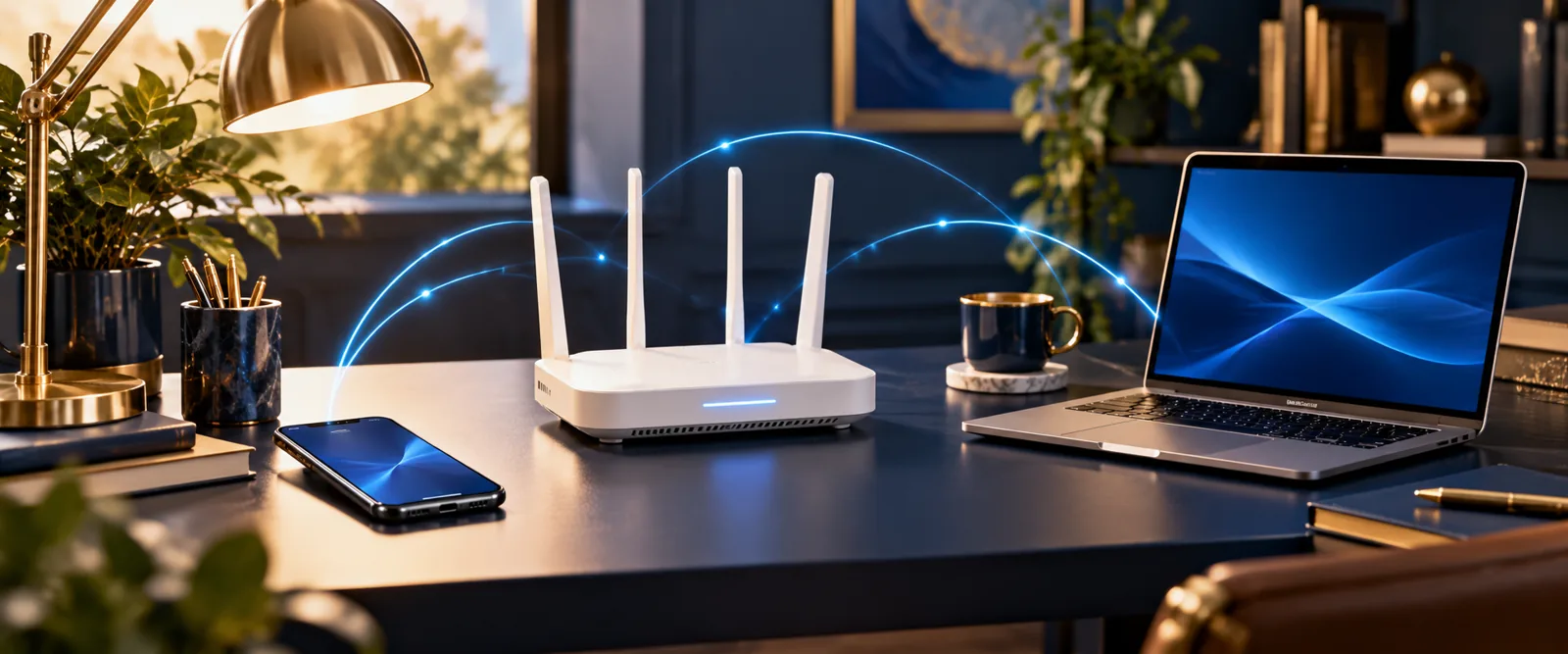
Identify whether a connection issue comes from Wi-Fi, mobile data, DNS, a captive portal or an app service without exposing account details.
For the site’s broader practical and security information, visit the Guides information. You can also return to Club Suncity 2 official website for the complete brand overview.
Separate a network problem from a service problem
If an application cannot load, it is tempting to assume that the website or account is down. First check whether an ordinary trusted site opens in the same browser. Then see whether the connection problem affects multiple apps or only one. A failure shared across apps points more strongly toward a network issue.
A single app may require connections or settings that a normal website does not. Successful browsing therefore does not prove every service is reachable, but it is a useful starting observation.
Why Wi-Fi can behave differently
Home Wi-Fi, public Wi-Fi and mobile data use different routing and DNS arrangements. Public networks may show a sign-in or acceptance page before granting access. Sometimes a phone reports Wi-Fi connected while the internet is unavailable until that step is completed.
Avoid entering sensitive account details on a captive portal that imitates your intended service. A Wi-Fi access page should be evaluated separately from an app login. If the network name is unfamiliar or duplicates a venue’s name, confirm it with the venue.
Safe comparisons
When permitted and practical, test one trusted site over Wi-Fi, then mobile data. Note which connection succeeds and whether the failure occurs before or after logging in. Do not rapidly toggle multiple network-security options or install unknown VPN tools as a first response.
Consider whether your data allowance, roaming configuration or provider restrictions could explain the difference. Some users will see different outcomes based on local network conditions, so one successful test is not a universal fix.
For the related background, see diagnosing a slow app; that guide covers the separate question in more detail.
DNS and device settings
Incorrect device time, unusual DNS settings or a captive portal can interrupt secure connections. If you previously changed a network setting for troubleshooting, record its original value before reversing it. A trusted default configuration is generally safer than copying unverified DNS addresses from comment sections.
Certificate errors are particularly important. Do not bypass browser warnings simply to reach a download or login page; first verify the domain and connection.
Know when to ask for help
A technical report is more useful when it includes the approximate time, connection type, device operating system and general symptom. Do not send an account password, one-time code or full network configuration to strangers. An intermittent failure may require repeated observation rather than repeated account changes.
If the error clearly says credentials are incorrect, a connection switch is unlikely to help. Use the relevant login troubleshooting article instead of treating every access issue as internet instability.
If your question is instead about common sign-in errors, use that focused article rather than applying unrelated troubleshooting steps here.
Prevent unnecessary troubleshooting
Keep device software updated and use networks you recognise. Avoid disabling security protections to test speculative fixes. If one network consistently fails, your network administrator or mobile provider may be the right source of information.
The goal is to isolate the failing part—device, connection, service or account—without creating a second problem while trying to solve the first.